Tutorial 7 of 7
Team timesheets in a shared workspace
Intermediate 6 min
Save Timeslice to a Teamspaces workspace so your team tracks time on one live task list, with private entries, team reports and weekly approval.
Timeslice works without an account. When a team wants one shared task list, team totals and an approval step, save the timesheet to a shared workspace. Each person keeps tracking their own time; the workspace stores it and decides who sees what.
Start a team timesheet
- Open the timesheet whose projects and tasks the team should use.
- Choose File → Save to workspace…. Sign in with a passkey (or Google) if you have not yet, then pick a workspace or create one.
- Give the team timesheet a name and press Save.
The projects and tasks become the team's shared list. Your own entries move into your personal sheet in the workspace. The status bar shows the workspace, the save state and the people who have the team timesheet open right now.
To bring people in, choose File → Share and permissions…. There you create invite links with a role and copy the direct link to the team timesheet. When someone opens that link, Timeslice opens the team timesheet for them and creates their own empty sheet.
Who sees what
- Owners and admins see every member's entries, the team report and the weekly approval list.
- Members track their own time, may add and edit projects and tasks, and see the team's totals per task and day. Other members' entries stay private unless an admin turns on Members can see each other's entries in Team → Team settings….
- Viewers see the team report only. Timeslice shows a read-only note and refuses every change.
- Guests see nothing unless someone shares a document with them by name.
These rules are stored with the documents in the workspace, so the server enforces them; hiding happens on the server, not only in the app.
Changes to the task list reach everyone within a second or two. If two people change the same task at the same moment, Timeslice asks whether to load their version, keep yours or save yours as a copy. Changes to different tasks are combined without asking.
Team report
Choose Team → Team report… to see the whole team's time for a range: grouped by member, project, task or client, with the same bar, donut and trend charts as your own reports and a table under each chart. Below the charts, a list shows each member's time and whether you can see their entries.
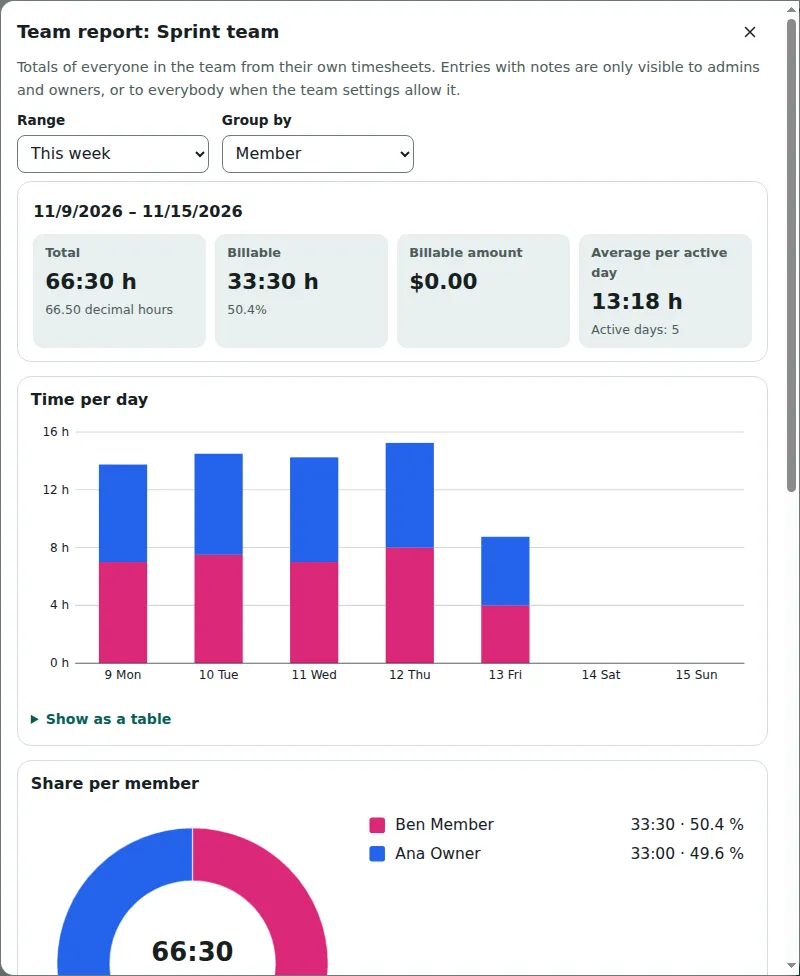
Team totals as CSV downloads one row per member, day and task with hours and billable hours. Entries you can see as CSV downloads the entries you are allowed to read, with a member column in front.
Weekly approval
When a week is complete, open Team → Weekly approval… and press Submit week. The week's entries are then locked, so you cannot change them by accident. Withdraw unlocks the week again while nobody has decided yet.
Admins see a Team weeks list for one week at a time. It opens on the newest week that waits for a decision. Approve accepts the week; Reject… sends it back with a note, which the member sees next to the week, and unlocks it. If time in an approved week changes later, the week shows Changed after approval.
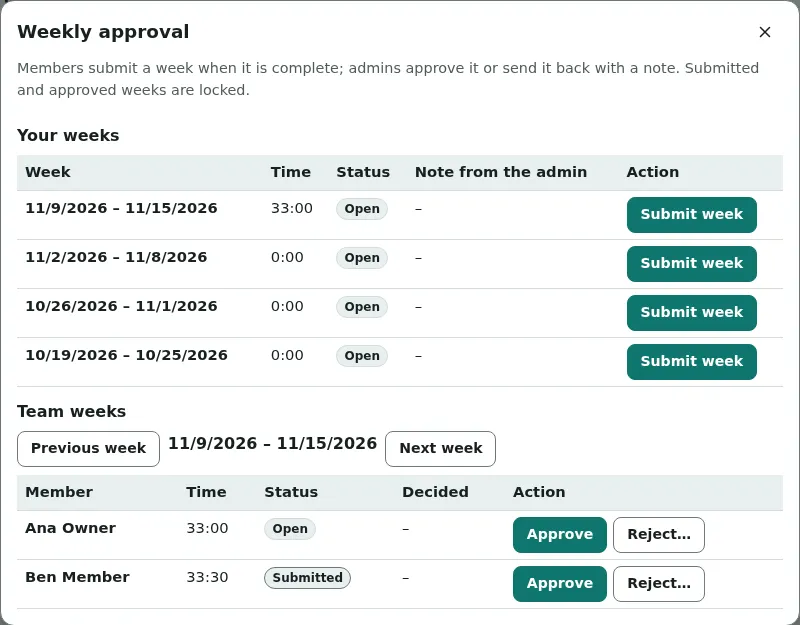
Only owners and admins can write approval decisions; members can read them. An admin can switch approval off in Team → Team settings….
Stop syncing
File → Stop syncing with the workspace keeps the current state as a normal timesheet in this browser; the team timesheet stays in the workspace for everyone else. Opening another timesheet or a template also leaves the team timesheet. As long as you do not leave it, Timeslice reopens the team timesheet the next time you start it while signed in.
Ready to try it?