Tutorial 6 of 7
Projects, tasks and moving in from another tracker
Intermediate 5 min
Organise tasks in projects with clients, colours, tags and hourly rates, archive what is done, and bring your old hours along from a CSV export of another time tracker or a spreadsheet.
The Tasks tab holds the lists behind the task dropdown. You do not have to fill it first — every task dropdown creates tasks on the fly — but it is the place to tidy up.
Projects and tasks
A project groups tasks and carries the Client, the colour, the Hourly rate and whether new entries are Billable. A task belongs to a project or to none, and can have its own tags, colour and rate. Leave a task's rate empty to use the project's rate; the Default hourly rate in File → Settings… fills in where neither has one.
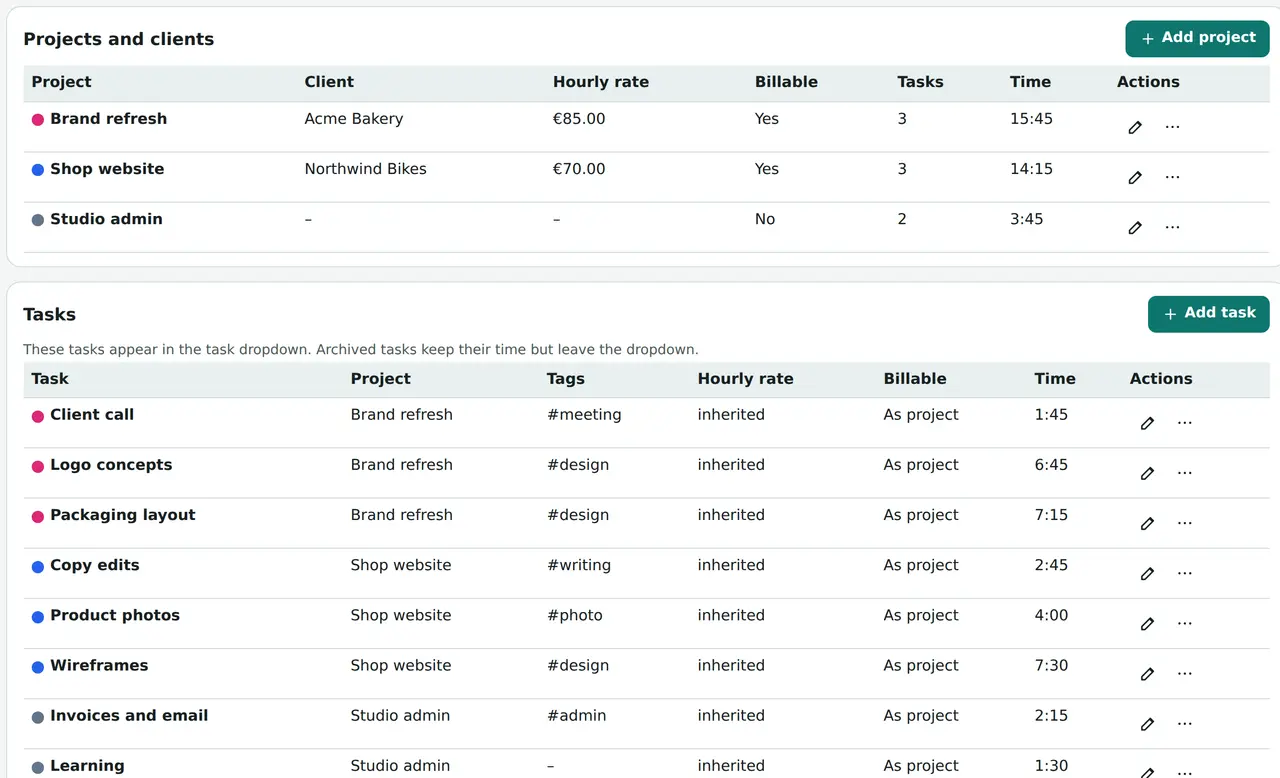
Each table shows how much time sits on every project and task. The pencil edits a row; the three dots offer Add a task to this project…, Share this project’s task list…, Start the timer for this task, Archive and Delete….
Archive is usually what you want when a project is finished: the task leaves the dropdown, but its time stays in every report. Delete… on a task keeps its entries as No task; on a project it keeps the tasks without a project. Both can be undone with Ctrl+Z.
Tags group work across projects — meeting, design, admin. Set them on the task, add Extra tags on single entries, and choose Group by: Tag in Reports. An entry with two tags counts under both, and the report says so.
Move in from another tracker
File → Import CSV… reads the CSV export of most time trackers and spreadsheets. Paste the table or press Choose a CSV file…. Timeslice finds the columns by their names in English or German — date, start, end, duration, project, task, client, note, tags, billable, rate — and the separator by itself (comma, semicolon or tab).
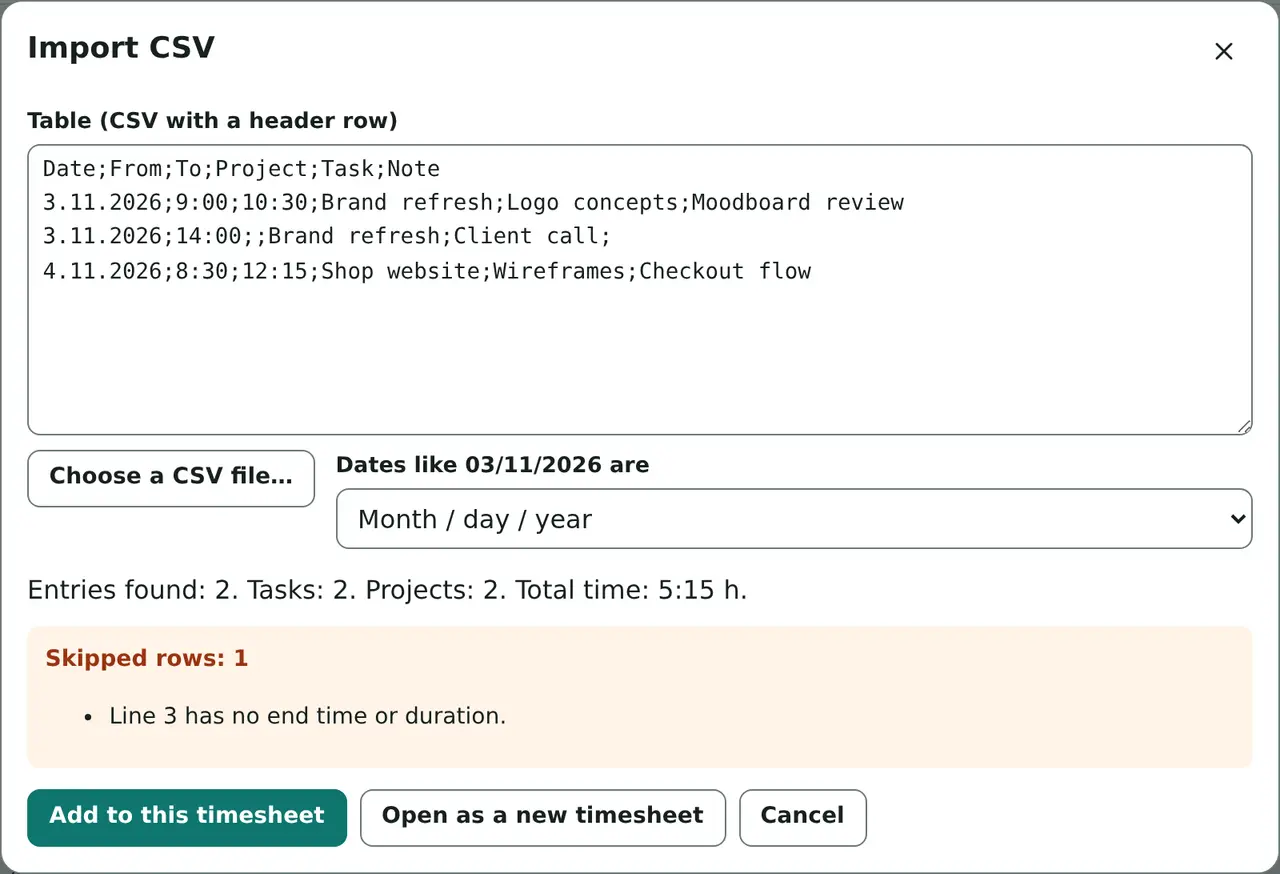
Check Dates like 03/11/2026 are: whether that date means 3 November or 11 March depends on where the file comes from. The preview counts the entries, tasks and projects it found and lists every row it had to skip with the reason, before anything is imported. Rows with only a date and a duration are placed one after another from 9:00 on their day.
Add to this timesheet merges the rows into the open timesheet: projects and tasks are matched by name and exact duplicates are skipped, so importing the same file twice adds nothing. Open as a new timesheet keeps the import separate.
Several timesheets
File → New timesheet starts an empty one, Recent timesheets… switches between those stored in this browser, and Templates… opens examples — a freelance week, a study log, a software sprint and home and hobbies — moved to the current week so the reports have something to show.
Ready to try it?