Tutorial 5 of 7
Share a report or a task list
Intermediate 4 min
Send a read-only report as a link — the data rides in the link itself, nothing is uploaded — or share your task list so a colleague tracks against the same tasks.
Timeslice has no accounts and no server storage, so sharing works through links and files that carry the data themselves.
Share a read-only report
On the Reports tab, pick the range and grouping you want to show and press Share report… (also in the Export menu). The link holds that report: the totals per group, per day and the charts.
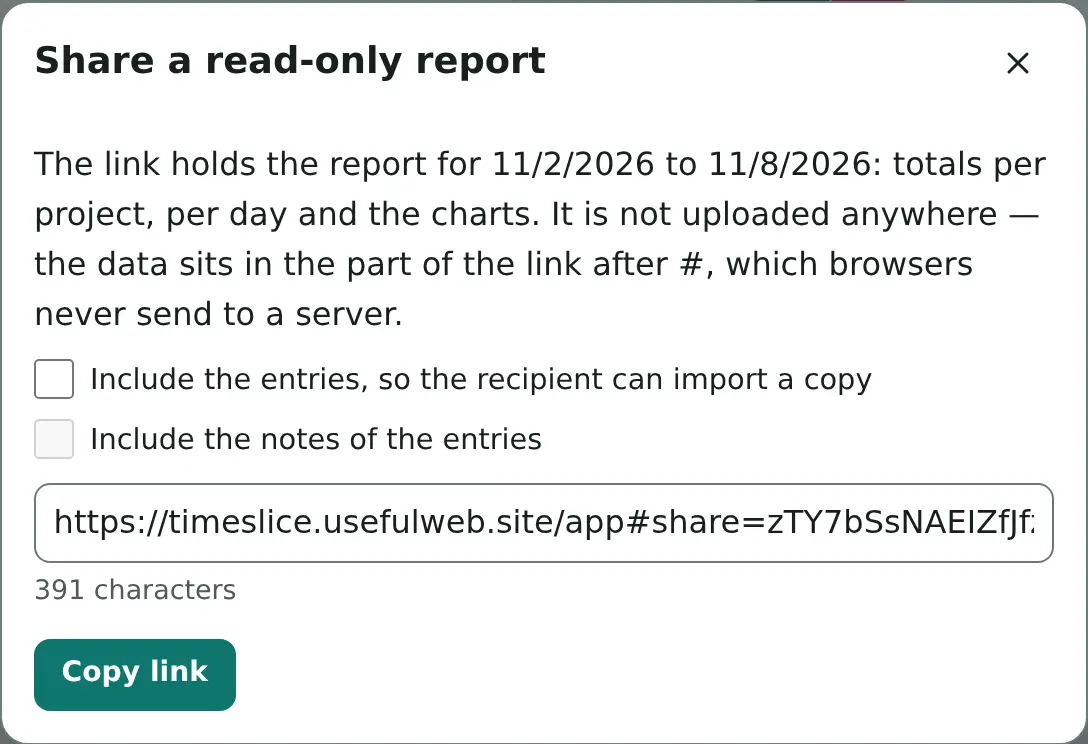
The data sits in the part of the link after #. Browsers never send that part to a server, so the report goes from you to the recipient and nowhere else. It is compressed, and the dialog shows how long the link is; very long links may not fit into every chat app — send a timesheet file instead.
Two checkboxes decide how much the link carries:
- Include the entries, so the recipient can import a copy adds the single entries with their times and tasks.
- Include the notes of the entries adds the notes too. Leave it off when your notes are private.
What the recipient sees
Opening the link shows the report read-only: Read-only report from a link, the cards, the charts and the tables, with the currency you used. Their own timesheet stays untouched. If the link contains the entries, Import a copy opens them as a new timesheet; Back to my timesheet closes the report.
Share the task list
To let a colleague track against the same projects and tasks, press Share task list… on the Tasks tab, or Share this project’s task list… in the menu of one project. Choose the projects to share. The list carries names, clients, colours, tags and rates — no times and no notes.
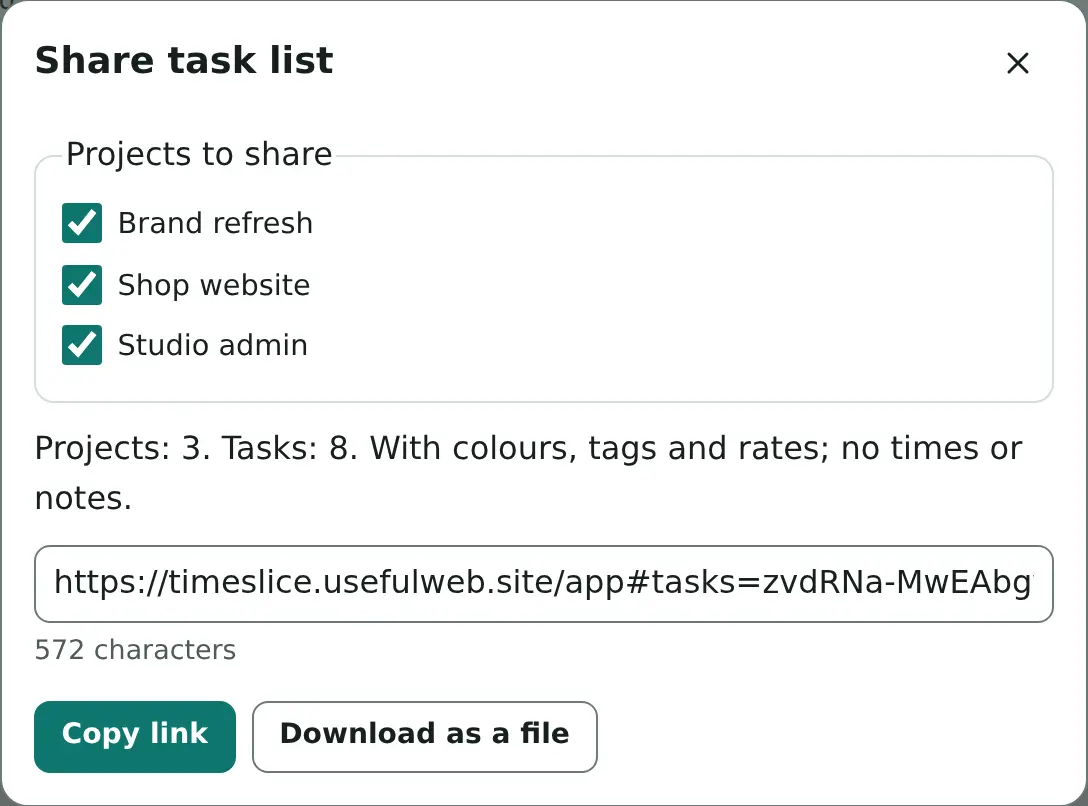
When your colleague opens the link, Timeslice asks before adding anything and names how many new projects and tasks it adds. Projects and tasks with the same name are kept, so importing an updated list twice does not create duplicates. Download as a file saves the same list as a .timeslice-tasks.json file, which Import task list file… on the Tasks tab reads.
Share the whole timesheet
File → Save as… saves everything — entries, projects, tasks and settings — as a .timeslice.json file. Send it by mail or put it in a shared folder; File → Open file… opens it on the other side. It is also your backup: Timeslice keeps your timesheets in this browser, and clearing the browser data deletes them.
Ready to try it?