Tutorial 1 of 7
Track your first hour
Beginner 4 min
Start the timer on a task, stop it when you are done and find the entry in this week's list. The timer keeps running when you reload or close the tab.
Timeslice opens on the Track tab. If you open it from a template such as Freelance design week, the week is already filled with entries, so you can see what a working week looks like before you add your own.
Start the timer
At the top, under Timer, the field What are you working on? is a task dropdown: type a few letters of a task, pick it with the arrow keys and Enter, or click it. A note for the entry goes into the field next to it. Press Start — or just press T anywhere in the app.

The running time shows in the panel, on the timer button in the top bar and in the browser tab title, so you see it from other tabs too. The timer is stored right away: reload the page or close the browser and it is still running when you come back.
Below the timer, Continue: lists the tasks you used last. One click starts the timer on that task again.
Stop it
Press Stop (or T again). The time becomes an entry for today with your note. If you stop after a few seconds, Timeslice tells you how many seconds were saved; less than a second is not saved at all.
Starting the timer on another task while one is running stops the first one and starts the new one, so there is always only one running timer.
Find the entry
The list below shows the week, newest day first. Each day has its total, each entry its task, note, tags, start and end time and duration. Billable marks time you can bill.
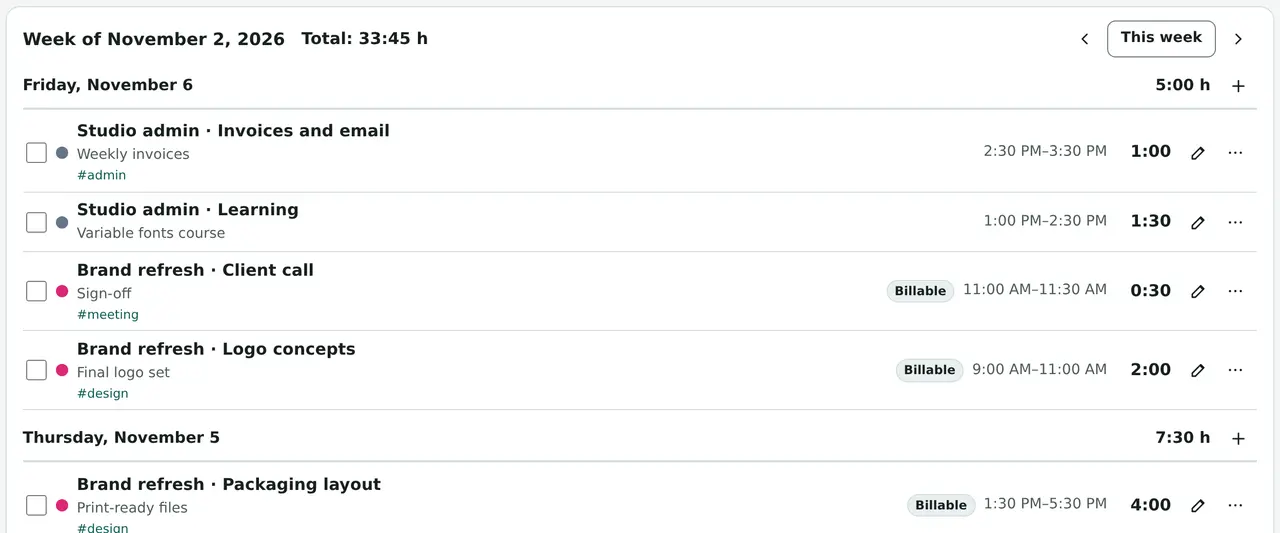
The pencil opens the entry for editing, the three dots open more actions: Continue this task now, Split…, Duplicate to today and Delete. The arrows next to This week move to the previous or next week.
When you forget to stop
If you set an Idle reminder in File → Settings…, Timeslice asks Welcome back after that many minutes without mouse or keyboard activity while the timer runs. Keep the time counts the away time; Remove the away time and keep the timer running saves the entry up to the moment you left and starts a new one from now; the third button stops the timer at the moment you left.
Everything stays in this browser. Nothing is sent to a server, and there is no account.
Ready to try it?