Tutorial 2 of 7
Add time with the date and time picker
Beginner 5 min
Add an entry you forgot to time by typing the way you speak — mon, 9-10:30, 1h30 — or pick it in the calendar, and create a new task right from the dropdown.
Not every hour gets a running timer. Add time by hand on the Track tab, the plus button next to a day, Add time in the calendar or the key N open the Add time dialog.
Type the time the way you say it
Every field understands short input, so you rarely need the mouse:
- Date takes today, yesterday, -2 (two days ago), a weekday such as mon or thu (the last one, today included) or a date in the order of your language, for example 5.11.2026 or 11/5/2026.
- Start and End take 9, 930, 9:30, 9:30pm, 21h30 or noon. Type a range such as 9-10:30, 4pm-6 or 14:00 + 45m into Start and Timeslice fills End and Duration for you.
- Duration takes 1h30, 90m, 1:30, 1.5 or 1,5 h. Changing it moves the end.
Enter confirms a field and keeps the dialog open; Ctrl+Enter saves the entry. The time list under the arrow of Start and End offers half-hour steps if you prefer clicking.
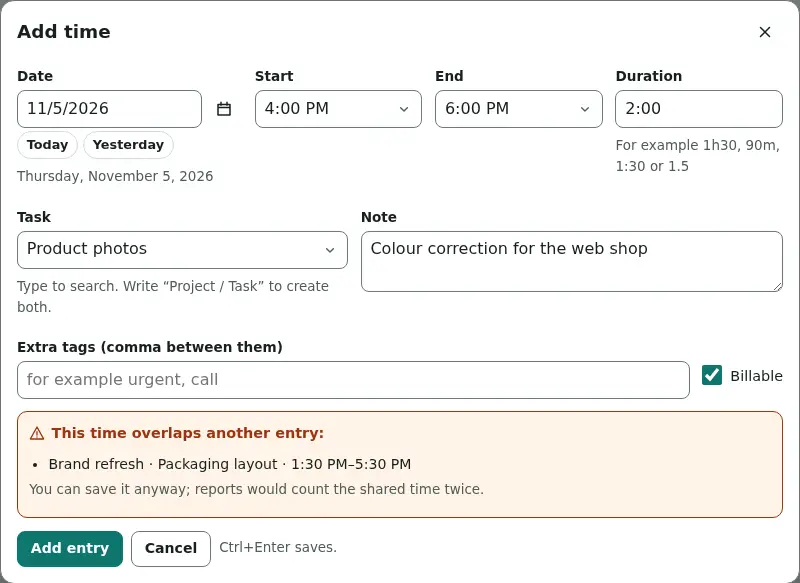
When the new time overlaps an entry you already have, a warning names that entry. You can still save — useful when you really did two things at once — but the reports would count the shared time twice.
Pick a date in the calendar
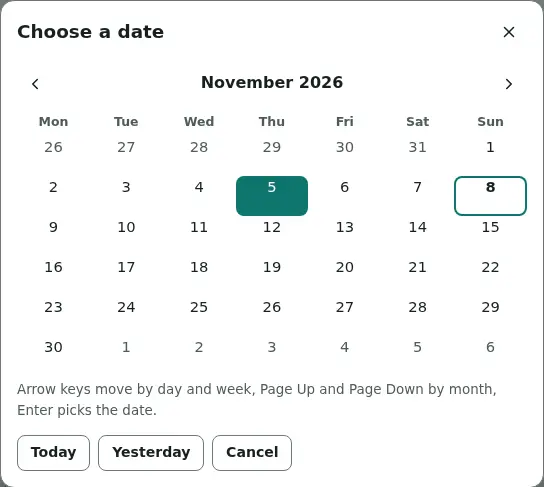
The calendar button next to Date opens a month grid. The arrow keys move by day and week, Page Up and Page Down by month (with Shift by year), Home and End to the start and end of the week, and Enter picks the date. Today and Yesterday are one click away, both in the calendar and under the date field.
Create a task on the fly
Task is a searchable dropdown: type a few letters of the task, the project or the client. If nothing matches, the list offers to create it. Write Project / Task — for example Acme / Moodboard — to create the project and the task in one go; a project that already exists is reused.
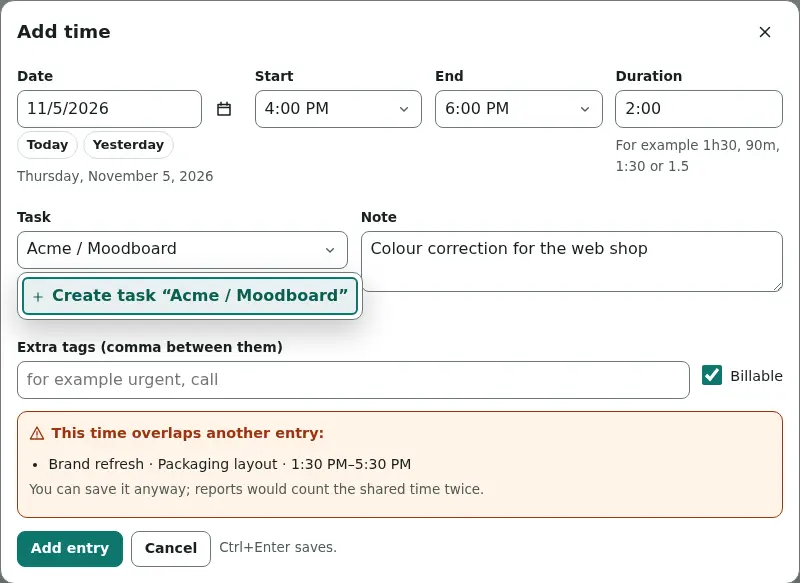
New projects get the next free colour. You can change colours, clients and hourly rates later on the Tasks tab.
Notes, tags and billable
Note describes what you did; it shows in the list, the calendar and the CSV export. Extra tags add tags to this one entry on top of the task's own tags. Billable starts with the project's setting and can be changed per entry.
Ready to try it?