Tutorial 3 of 7
See your days in the calendar
Beginner 4 min
The Calendar tab shows your entries as blocks on a timeline per day, per week or as a month with daily totals. Split and merge entries to clean up the record.
The Calendar tab draws every entry as a block on a timeline. Day, Week and Month switch the view; the arrows and Today move through time, and so do the arrow keys ← and → when no field has the focus.
Week and day
The week view has one column per day with the day total on top. Each block shows the task, the time and the note in the task's colour. Entries that overlap sit side by side, so nothing hides behind another block. A red line marks the current time on today's column.
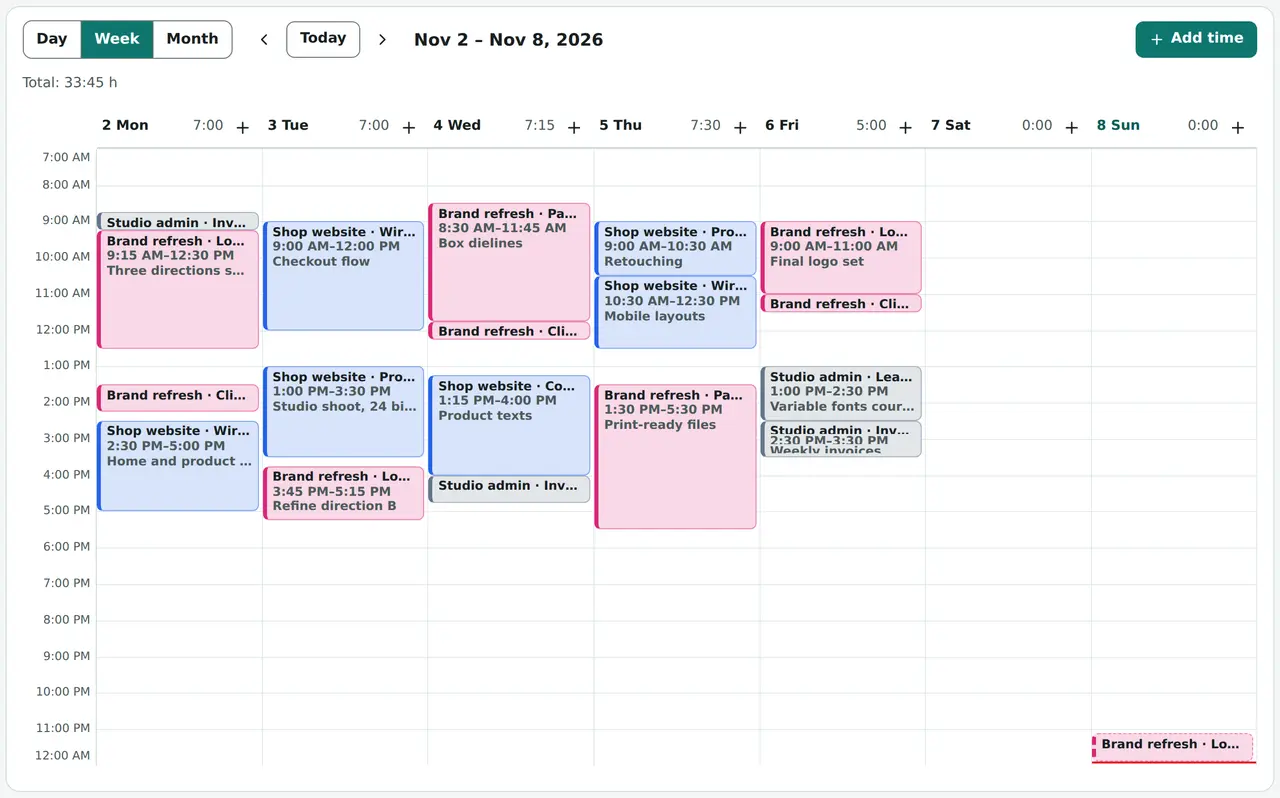
Click a block (or tab to it and press Enter) to edit the entry. The plus next to a day adds time on that day. The timeline only shows the hours you actually worked plus some room, so a normal working day fills the screen instead of a thin strip in a 24-hour grid. Time after midnight continues on the next day's column.
The day view is the same timeline for one day, with more room for the notes.
Month
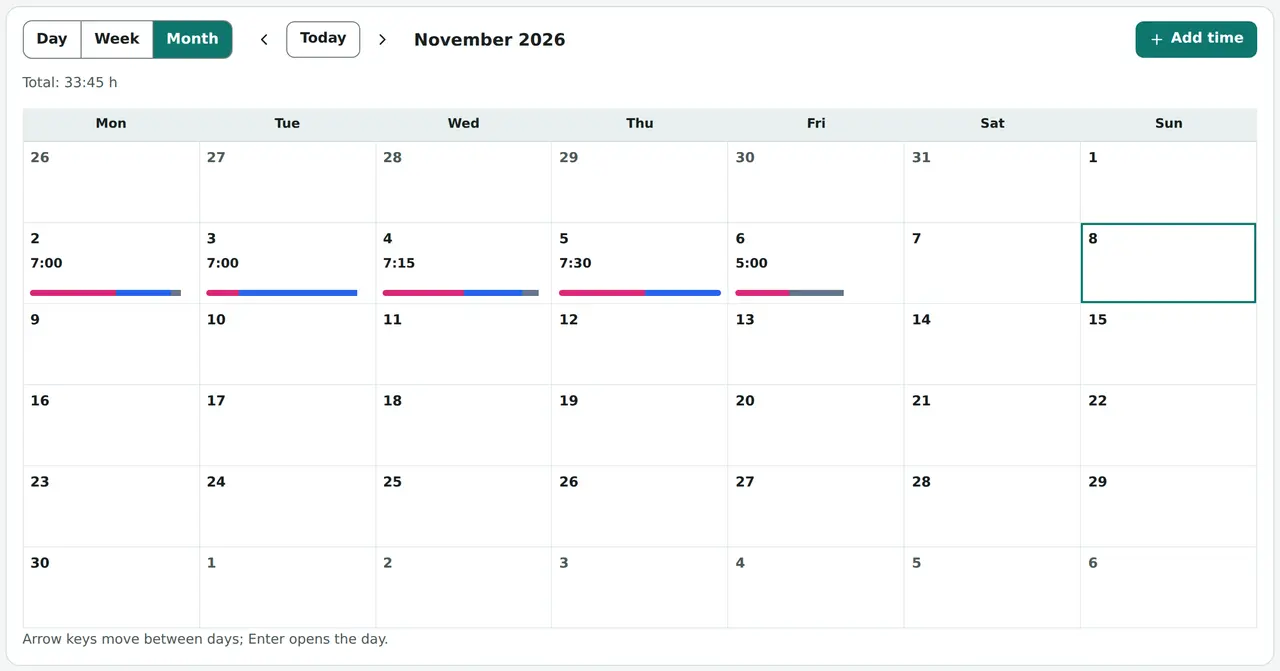
The month view shows the total of each day and a small bar in the colours of the projects you worked on. The arrow keys move between days and Enter (or a click) opens that day in the day view.
Split and merge
Worked on two things in one block of time? Open the three dots of the entry on the Track tab and choose Split…. Type the time to split at; the second part gets the same task, note and tags, and you can change its task afterwards.
To join entries, tick their boxes in the list and press Merge… in the bar that appears. Timeslice shows what the merged entry will look like — from the first start to the last end — and names any gap or overlap between them before you confirm. Delete selected entries in Edit removes several entries at once.
Every change can be undone with Ctrl+Z and redone with Ctrl+Y or Ctrl+Shift+Z.
Ready to try it?